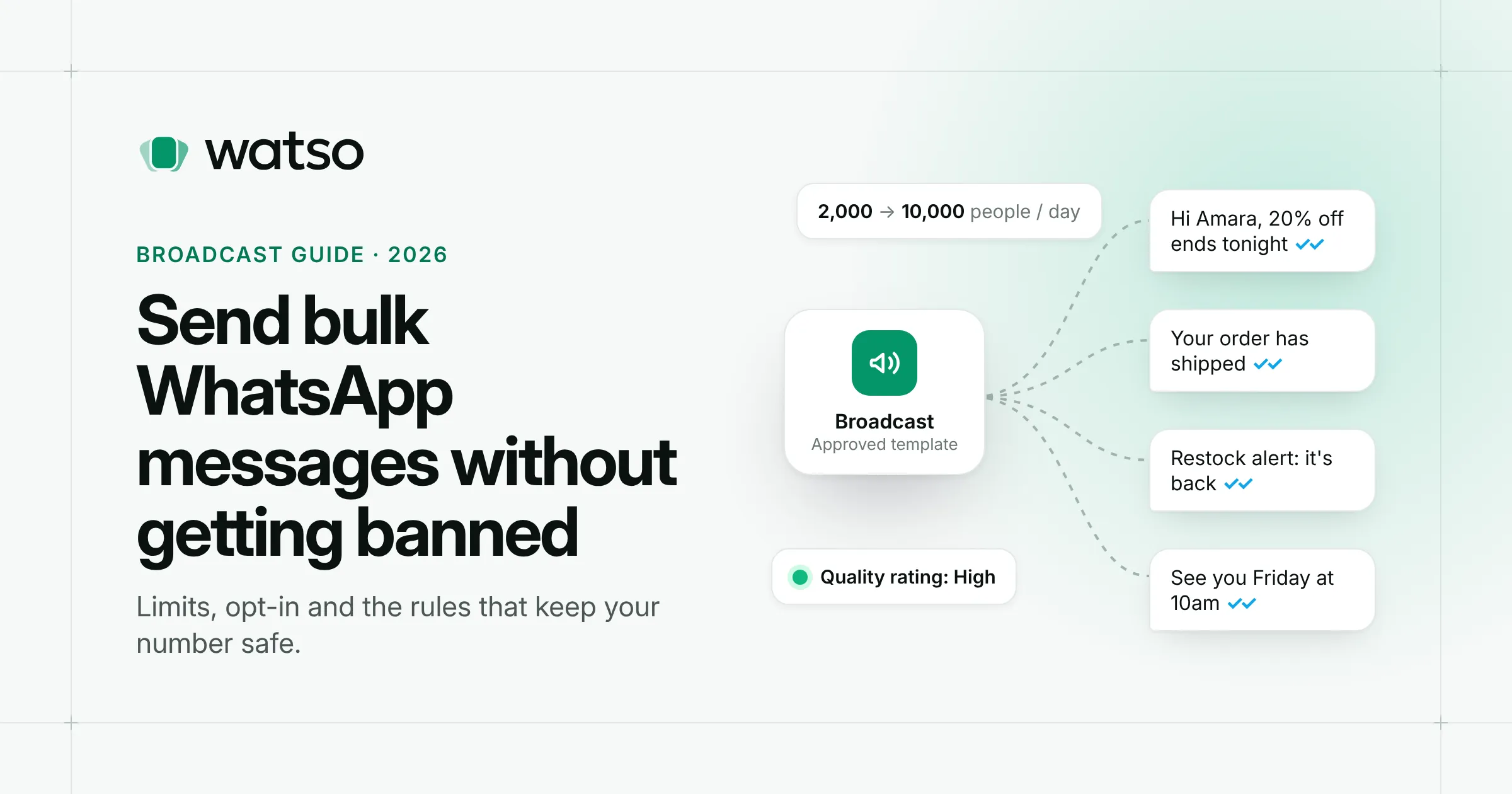
WhatsApp messages get opened in a way email rarely does, so it’s no surprise businesses want to send them in bulk: sale announcements, appointment reminders, restock alerts, event invites. Send them the wrong way, though, and your number can be restricted or banned, sometimes within hours.
This guide covers the three ways to send bulk messages on WhatsApp, the limits on each, and the rules that keep your account in good standing as you grow.
The three ways to send bulk WhatsApp messages
| Method | Reach per send | Who receives it | Risk |
|---|---|---|---|
| WhatsApp Business app broadcast lists | 256 contacts per list | Only people who saved your number | Low, but small scale |
| WhatsApp Business API (Cloud API) broadcasts | 250 to unlimited people a day, depending on your tier | Anyone who opted in | Low, if you follow the rules |
| Unofficial “bulk sender” tools | Claims to be unlimited | Anyone | High: these get numbers banned |
1. Broadcast lists in the WhatsApp Business app
The free WhatsApp Business app lets you create broadcast lists and message everyone on them at once. Each person receives it as a normal one-to-one chat.
It works well for small businesses, but has hard limits:
- 256 contacts per broadcast list.
- Only people who have saved your number in their phone receive it. Everyone else silently gets nothing, and you can’t tell who missed it.
- Replies come into one phone, so it’s hard to share the work across a team.
- There’s no scheduling, segmentation or delivery reporting worth the name.
If you have a few hundred loyal customers who already have your number saved, the app is a fine place to start.
2. Broadcasts through the WhatsApp Business API
The WhatsApp Business API, which Meta now provides as the Cloud API, is the official way to message customers at scale. You connect your number through a platform or a Business Solution Provider and send approved message templates to anyone who has opted in, whether or not they saved your number.
Compared to the app you get:
- Audiences in the thousands, or unlimited once your account is established.
- Delivery and read reports for every recipient.
- A shared inbox so a whole team can handle the replies.
- Scheduling, segments and automatic opt-out handling, depending on your platform.
The trade-off is that Meta charges per delivered message and expects you to follow its rules. Both are covered below. For costs, see our guide to WhatsApp Business API pricing in 2026.
3. Unofficial bulk sender tools (avoid these)
Search for “WhatsApp bulk sender” and you’ll find browser extensions and desktop apps that automate WhatsApp Web or a cloned app to blast messages from a personal or Business app number. They break WhatsApp’s terms of service, and WhatsApp actively detects automated behaviour on those apps.
The usual result is a banned number, often permanently, along with every chat history and customer contact tied to it. If your business depends on that number, it isn’t worth the risk.
How to send a bulk message with the WhatsApp API, step by step
- Set up a WhatsApp Business Account. Create a Meta Business portfolio and connect a phone number through your platform. Most platforms do this with Meta’s embedded signup in a few minutes.
- Verify your business. Business verification in Meta Business Suite isn’t required to start, but it’s one of the ways to raise your sending limit from 250 to 2,000.
- Import your contacts with consent. Bring in only people who agreed to hear from you on WhatsApp. More on opt-in below.
- Write and submit a template. Marketing broadcasts must use an approved marketing template. You can add variables like
{{1}}for the customer’s name, plus an image, buttons or a link. Approval usually takes minutes, sometimes a day. - Choose your audience. Send to a segment, such as recent buyers or one city, rather than everyone.
- Schedule and send. Pick a time your customers are awake and not busy, then monitor deliveries, reads, replies and failures as they arrive.
WhatsApp messaging limits: how many messages can you send a day?
The API limits how many unique people you can start conversations with in a rolling 24-hour period. Replies to people who messaged you first don’t count. The limit applies to your whole Meta business portfolio, shared across all its phone numbers.
| Tier | Unique people per 24 hours | How you get there |
|---|---|---|
| Starting tier | 250 | Default for new accounts |
| Tier 1 | 2,000 | Verify your business, or send 2,000 high-quality template messages to unique people within 30 days |
| Tier 2 | 10,000 | Automatic |
| Tier 3 | 100,000 | Automatic |
| Unlimited | No limit | Automatic |
From 2,000 upwards, Meta raises your limit automatically, usually within about six hours, when two things are true: your message quality is high, and you’ve used at least half your current limit in the last seven days. You can’t request an increase by hand. You can check your current tier in WhatsApp Manager under Account tools > Messaging limits.
In practice, this means you grow your audience gradually. Send to the people most likely to engage first, keep quality high, and the limit follows.
Why WhatsApp numbers get restricted or banned
On the API, numbers rarely get banned outright overnight. Instead, Meta watches how people react to your messages, and warning signs build up first:
- Blocks and reports. Every time someone blocks you or reports a message as spam, your quality rating drops.
- Low quality rating. WhatsApp Manager shows a quality rating for your number and for each template: green (high), yellow (medium) or red (low). Templates with poor feedback can be paused or disabled.
- Policy violations. Messaging people who never opted in, or sending content WhatsApp’s Business and Commerce policies don’t allow, can restrict your account.
Two other limits catch people out:
- Per-user marketing limits. Meta limits how many marketing messages any one person receives from businesses. If someone has had too many, or tends to ignore marketing messages, yours may not be delivered. It fails with error 131049 (“not delivered to maintain healthy ecosystem engagement”). You aren’t charged for it, and Meta recommends waiting at least 24 hours before trying that person again.
- US numbers. Since April 2025, Meta has paused delivery of marketing templates to US (+1) phone numbers. Utility messages, such as order updates, still go through.
Best practices for bulk WhatsApp messages that don’t get you banned
Get clear opt-in first
WhatsApp requires that people agree to receive messages from your business on WhatsApp before you message them. Good places to collect it:
- A checkbox at checkout or sign-up that clearly names WhatsApp.
- A Click to WhatsApp ad or a “Message us on WhatsApp” button on your site.
- A keyword customers send you, like “JOIN”.
- In person, with a QR code that opens a chat.
Keep a record of when and how each person opted in. A list bought from a third party is not opt-in.
Make leaving easy, and respect it
Meta adds a “Stop promotions” button to marketing messages. When someone taps it, Meta stops delivering your marketing to them. Your platform should remove them from future marketing audiences automatically, so you don’t waste sends or annoy them with failed attempts. Honour “stop” or “unsubscribe” replies too.
Segment, don’t blast
The fastest way to collect blocks is to send everyone everything. Segment by what people bought, where they are, or how recently they engaged. Smaller, relevant broadcasts get more replies and fewer blocks, and they cost less.
Write messages people want to receive
- Lead with the value: what’s in it for them, in the first line.
- Personalise with their name and something specific, like the product they bought.
- Keep it short. WhatsApp is a chat, not a newsletter.
- Use one clear call to action, ideally a button.
- Say who you are, so the message isn’t mistaken for spam.
Watch frequency and timing
There’s no official cap, but most businesses find that more than one or two marketing messages a week starts to drive blocks. Send at sensible local times, never late at night.
Monitor every broadcast
After each send, check delivery failures, read rates, replies, and your quality rating in WhatsApp Manager. If a template’s quality drops, pause it and rewrite it before sending again.
Be ready for replies
A broadcast starts conversations. If hundreds of people reply and nobody answers, they’ll stop opening your messages. Use a shared inbox so your team can pick up replies quickly.
Frequently asked questions
How many people can I send a WhatsApp broadcast to?
In the WhatsApp Business app, 256 per broadcast list, and only to people who saved your number. With the API, it depends on your messaging tier: 250 unique people a day for new accounts, rising to 2,000, 10,000, 100,000 and then unlimited.
Can I send bulk WhatsApp messages without saving contacts?
Yes, but only through the WhatsApp Business API. App broadcasts only reach people who saved your number. API template messages reach anyone with a WhatsApp account who opted in to hear from you.
Is sending bulk messages on WhatsApp legal?
Yes, through official channels and with consent. WhatsApp requires opt-in, and local laws on marketing consent, such as GDPR in Europe, still apply.
Why did some of my broadcast messages fail?
The common reasons are an invalid or non-WhatsApp number, the person having opted out of marketing, Meta’s per-user marketing limit (error 131049), the US marketing pause, or reaching your daily messaging limit.
Can I send bulk messages from WhatsApp Web?
Only by using unofficial automation, which breaks WhatsApp’s terms and risks a ban. Use the API instead.
Want to send WhatsApp broadcasts the safe way? Watso runs on Meta’s official WhatsApp Cloud API. Build segments from your contacts, schedule broadcasts with approved templates, track every delivery, and handle replies in a shared team inbox. Customers who tap “Stop promotions” are left out of future marketing automatically. Try the live demo or get started.